Best on a tablet or a computer
Everything below tells you what DocketPDF™ does. The program itself wants room: a page grid you drag across, an index panel beside it, a page editor with an alignment grid. Those need a tablet, laptop or desktop screen.
Read the whole pitch here, then open docketpdf.com on a larger screen when you are ready to work. The Android build is laid out for large tablets, and the Linux AppImage runs on any desktop.
Features
One window, from four loose files to a filed bundle.
Everything below is in the app today. The tour follows the order you would actually use it in: open, arrange, edit, sign, index, produce.
Ten formats in, one set out.
Drag files anywhere in the window. Several PDFs merge into a single set you can reorder, rotate, split and index. Word, OpenDocument, RTF, PowerPoint, plain text, Markdown and CSV come in as typed pages — the words are kept, the layout is not, and a slide deck becomes one page per slide. Images arrive as pages and you choose how they sit.
A PDF opened from Files or Drive on the tablet build lands straight in the grid.
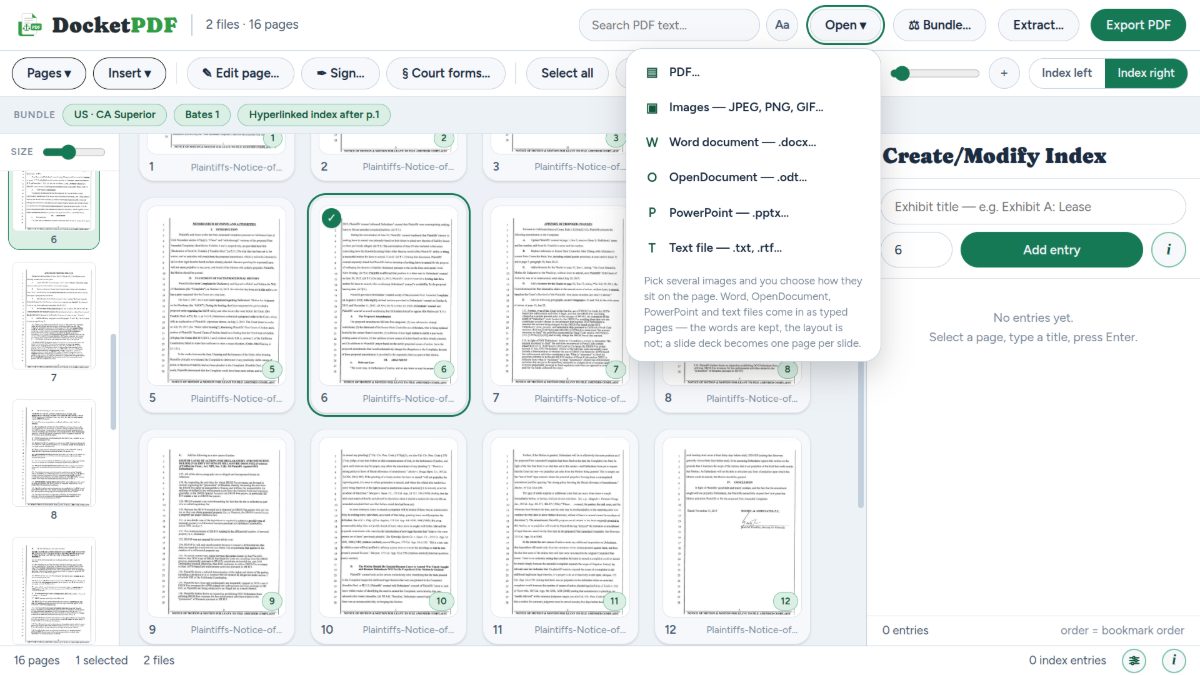
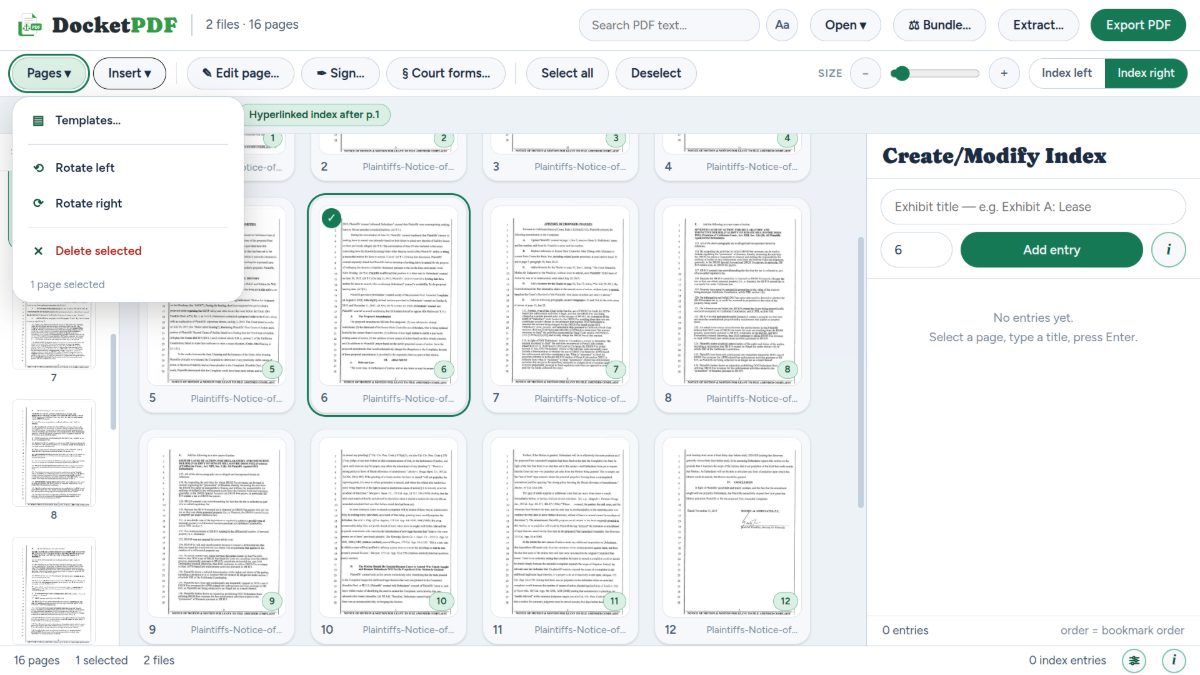
The grid is the document.
Thumbnails at whatever size suits your screen, with a rail down the side for the long scroll. Select one page or a hundred; rotate, delete, reorder by drag. Insert a blank page, a lettered exhibit divider, a page from a template, or a folder of images — all placed exactly after the page you had selected.
The status bar keeps count: pages, selected, files. No guessing what state you are in.
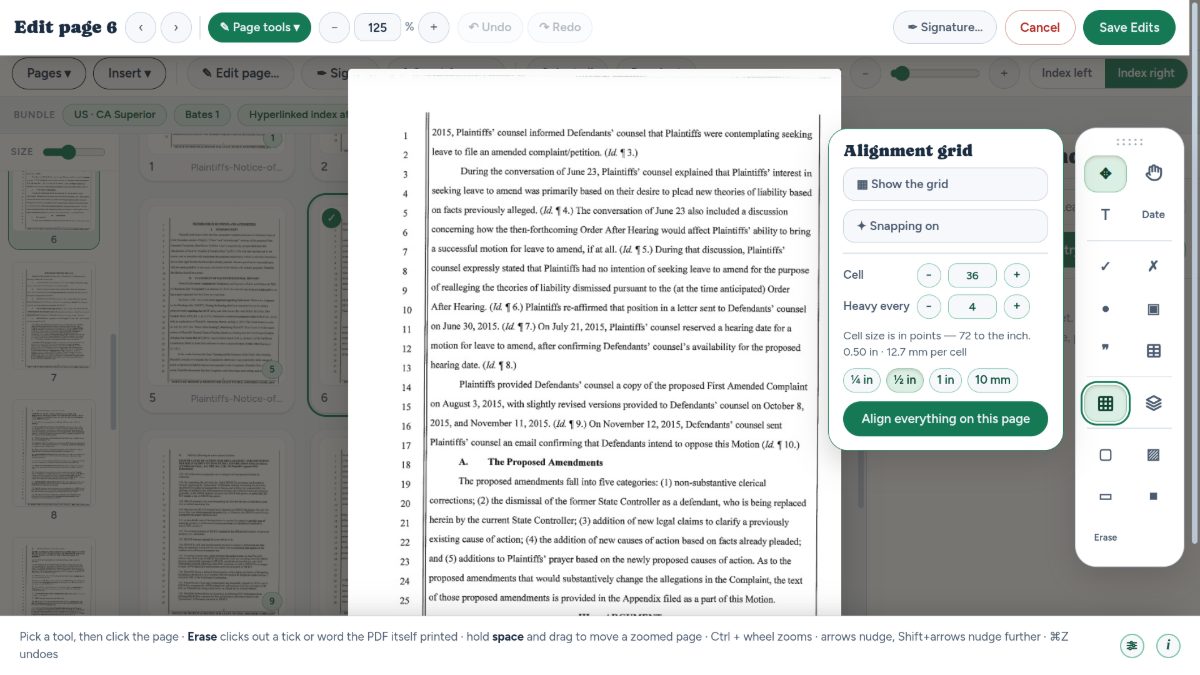
Type on it, tick it, erase it, black it out.
A page editor with text, dates, ticks and crosses, dots, boxes, quote marks and tables. An alignment grid in inches or millimetres with snapping, and a layer stack you can restack by dragging.
Erase clicks out something the PDF itself printed — a tick in a box, a word, a stray mark, a form field. Redact draws a box, and burning it in fuses the box and the words beneath it into the page, so nothing can be lifted off later.

Your actual signature, not a font.
Use a scan or photo — a transparent PNG works best — or draw it with a mouse, stylus or finger. On the tablet build, stylus pressure varies the stroke width and palm touches are ignored while the pen is down.
Drag to position, resize from the corner dots, rotate freely or in fifteen-degree steps, then affix it to the page.
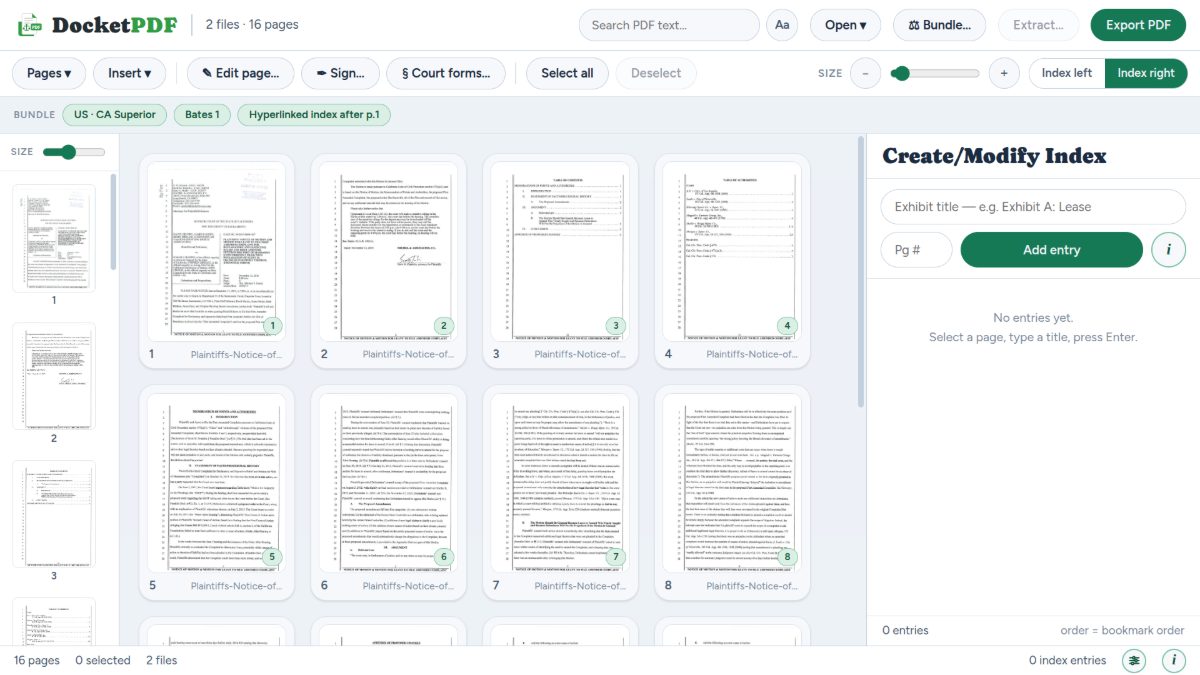
One list drives everything downstream.
Select the page an exhibit starts on, type its title, press Enter. That entry becomes a row on the index page, a hyperlink to the page, a bookmark in the PDF outline and, where the preset asks for it, a lettered section with its own internal numbering.
Order in the panel is bookmark order. Put the panel on the left or the right, or run it as a dialog or a rail — whichever your screen allows.
Two exports, and the app is honest about the difference.
Keep layers
Pages stay as text and vector content: searchable, selectable and still editable in DocketPDF™ or another editor. Form fields survive. Redactions are burned in as an image patch so the box cannot be lifted off — but the words beneath it remain in the file.
Flatten
Every page becomes a flat image at print resolution. Redactions and covers truly erase what is under them, and form fields, scripts and other interactive parts are dropped. Nothing stays searchable or editable — so read your scans before flattening, because the OCR layer is the only text there will be.
Extract, for when you only need part of it
Pull a selection of pages out as their own PDF — a single exhibit for the other side, a chteals copy, one page for the client. Extract and Export are the two actions that write a finished file, and both count against your plan’s monthly allowance.